Install the app#
Note
This section is mainly for users who accessed AiiDAlab via the open servers (Materials Cloud or Materials MarketPlace), where the app is not yet installed. For all other options, we’ve taken care of installing the app. You may proceed to use the app. To learn more about how to do so, you can check out the tutorials.
Nevertheless, if interested, please feel free to read on. This guide may be followed in general for other AiiDAlab apps, with minor adjustments if any.
AiiDAlab offers two options for installing the Quantum ESPRESSO app:
Via its App Store
Via its built-in Terminal
Tip
If you’re using aiidalab-launch to start AiiDAlab locally, you may also install the app directly from the host computer with
aiidalab-launch exec -- aiidalab install quantum-espresso
Click on the icon in the nav bar. This will open the app store page in a new window or tab.

Scroll down until you find the app.
Tip
You can filter apps by category.
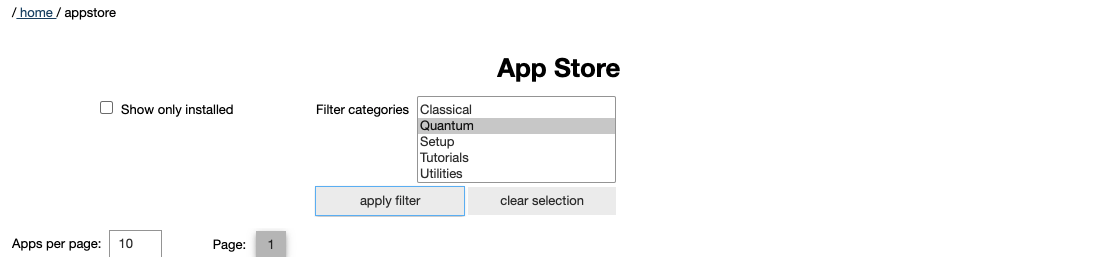
Apps not yet installed will show up as follows:
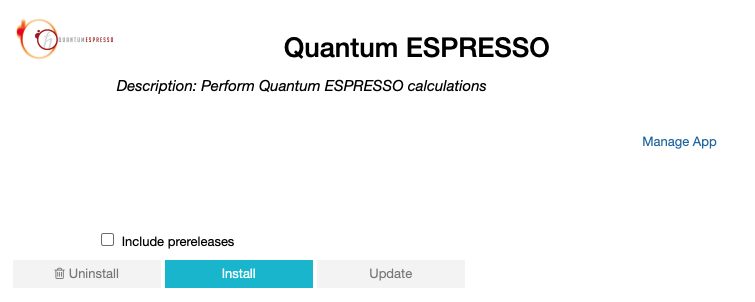
Click on the Install button to install the app and its dependencies.
Note
In some cases, you may install a prerelease by clicking on the Include prereleases check box. Use this option only if you require access to a not yet released feature, or if you would like to test a new app version and provide feedback to the developer(s).
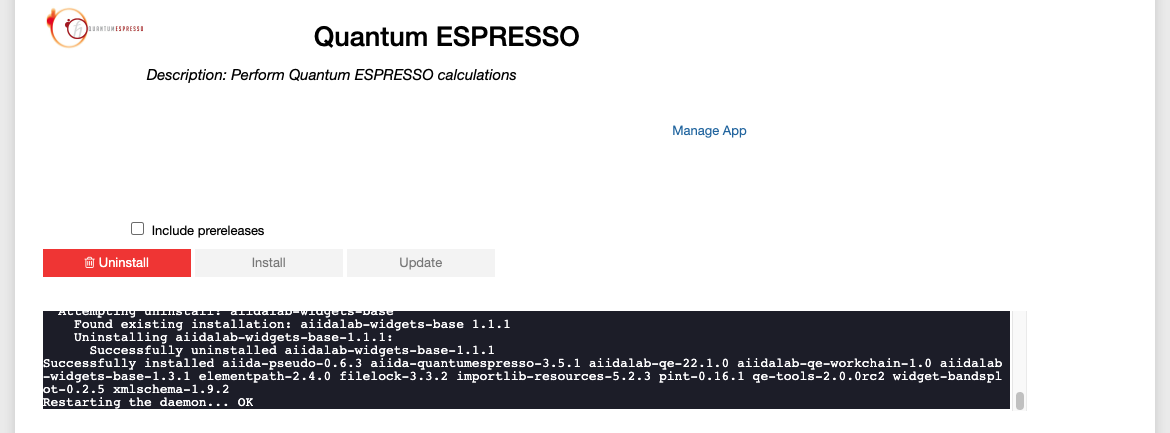
The current installation process will be displayed in a terminal widget.
Open the built-in terminal by clicking on the icon in the nav bar.

$ aiidalab install quantum-espresso