Basic Tutorial#
Overview#
Submitting a Quantum ESPRESSO calculation from the Quantum ESPRESSO app involves the following steps:
Selecting a structure
Configuring the workflow
Choosing computational resources
Submitting the job
Once submitted, the app will compile your input into a payload for the AiiDA workflow management system backend, which will take care of submission and provenance tracking. While AiiDA manages your calculation, you can monitor the status of the calculation in the app. Once your calculation is finished, AiiDA will retrieve the results, which you can then view from the app.
In the following tutorial, we will guide you through each of these steps.
Start#
Goal
To run a band structure calculation on silicon using the Quantum ESPRESSO app (running directly on the AiiDAlab machine) and obtain a band structure and projected density of states (PDOS).
To start, go ahead and launch the app, then follow the steps below.
Step 1: Select a structure#
Switch over to the From Examples tab and select Silicon (diamond) from the dropdown menu.
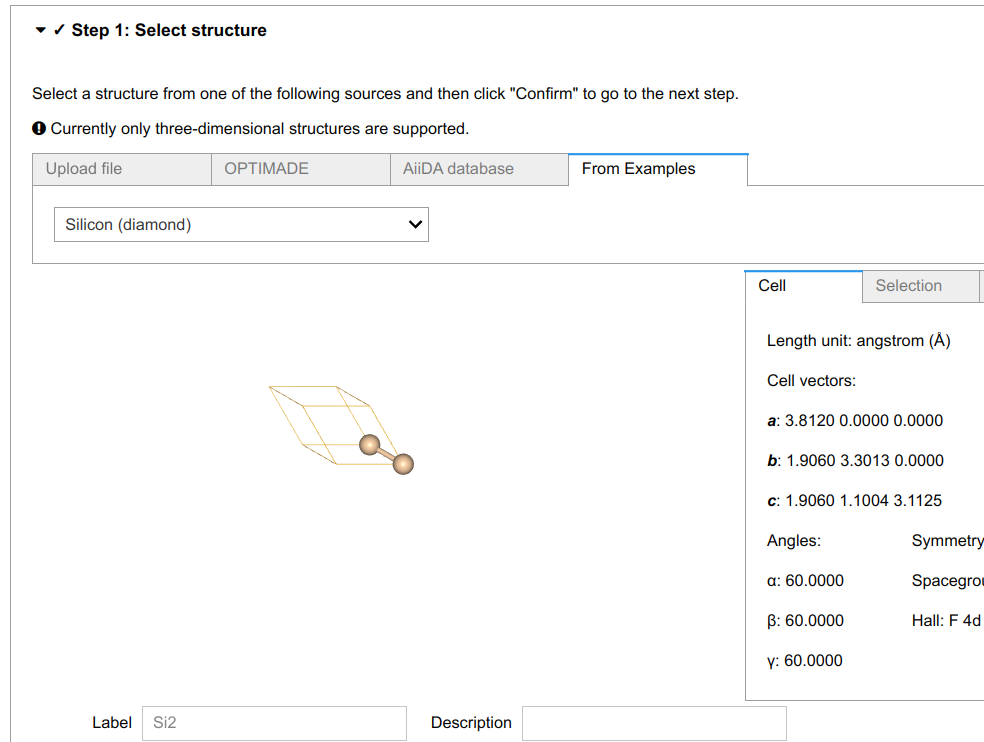
Click the Confirm button to finalize your selection.
Tip
The app allows you to select a structure from various sources. For more information, check out the corresponding How-To page.
Step 2: Configure the workflow#
Structure#
We should first relax the structure to obtain a better charge density, improving the quality of our results. There are three types of structure relaxation you can perform:
No relaxation, leaving the structure as is
Relax only the atomic positions, leaving the cell geometry as is
Full geometry relaxation, also allowing the cell geometry to change to minimize the energy
For our silicon (diamond) unit cell, either Atomic positions or Full geometry may be chosen, as both will yield reasonable results and should run quickly on the AiiDAlab machine.
Properties#
There are two properties that can be computed:
Band structure
Projected density of states (PDOS)
As the goal stated, we need to select both.
Protocol#
The Quantum ESPRESSO app provides several convenient protocols to set the accuracy of the calculation through tuning convergence criteria and cutoffs. In order to quickly get the result, please select the fast protocol.
Note
For any production calculation, you would ideally set up a remote computer (cluster, supercomputer, etc.) and set tighter convergence criteria, i.e. moderate or precise protocols. You can check the corresponding How-To section to learn how to setup a remote computer (and the corresponding Quantum ESPRESSO codes) to run a precise band structure calculation.
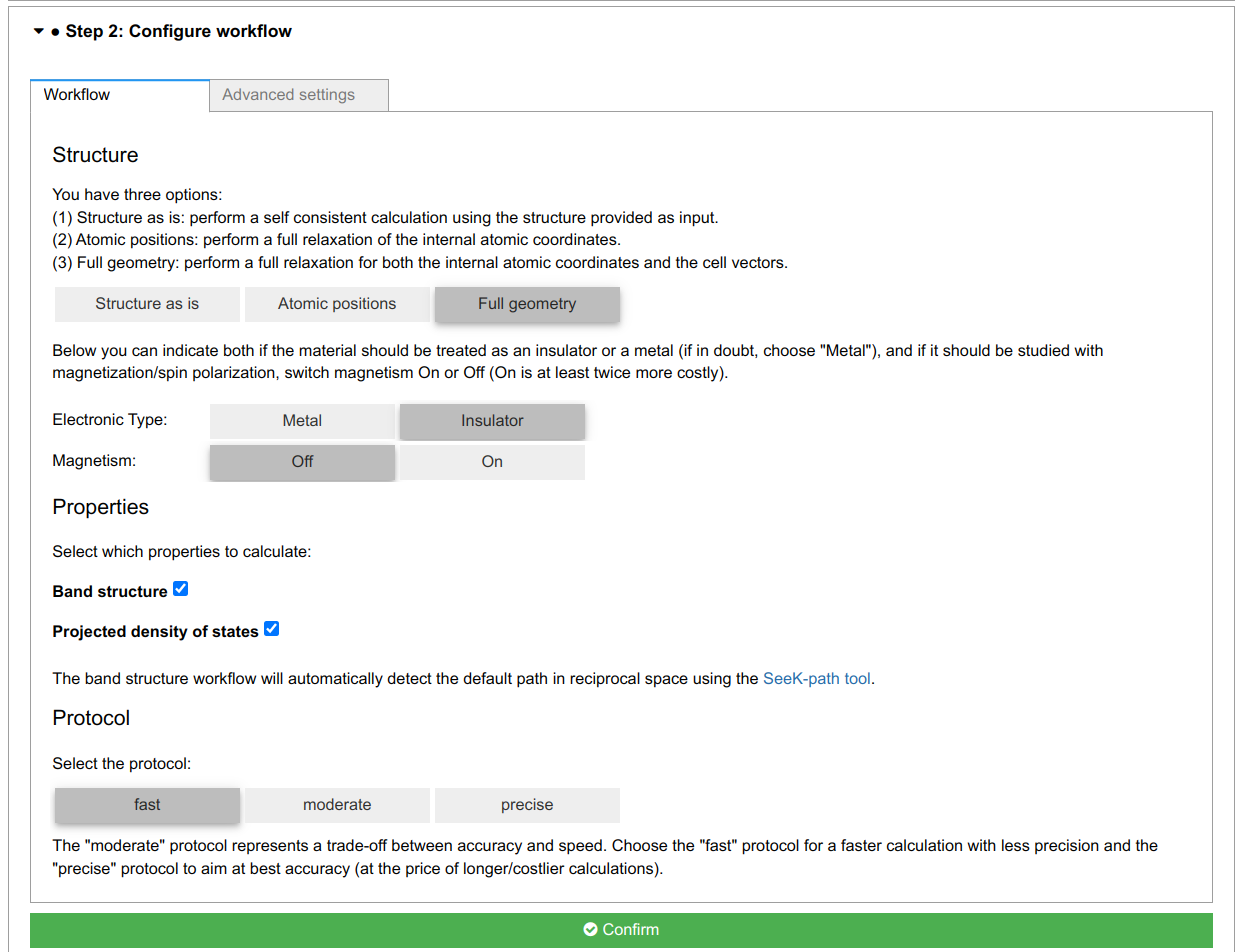
Again, click the Confirm button to finalize your selection.
Step 3: Choose computational resources#
Codes#
The AiiDAlab image comes pre-configured with a default computer (localhost) and the following codes:
We will use the default codes for the tutorial.
Resources & Parallelization#
Enter 1 for Nodes, CPUs, and Number of k-points. This is sufficient for the purpose of this tutorial.
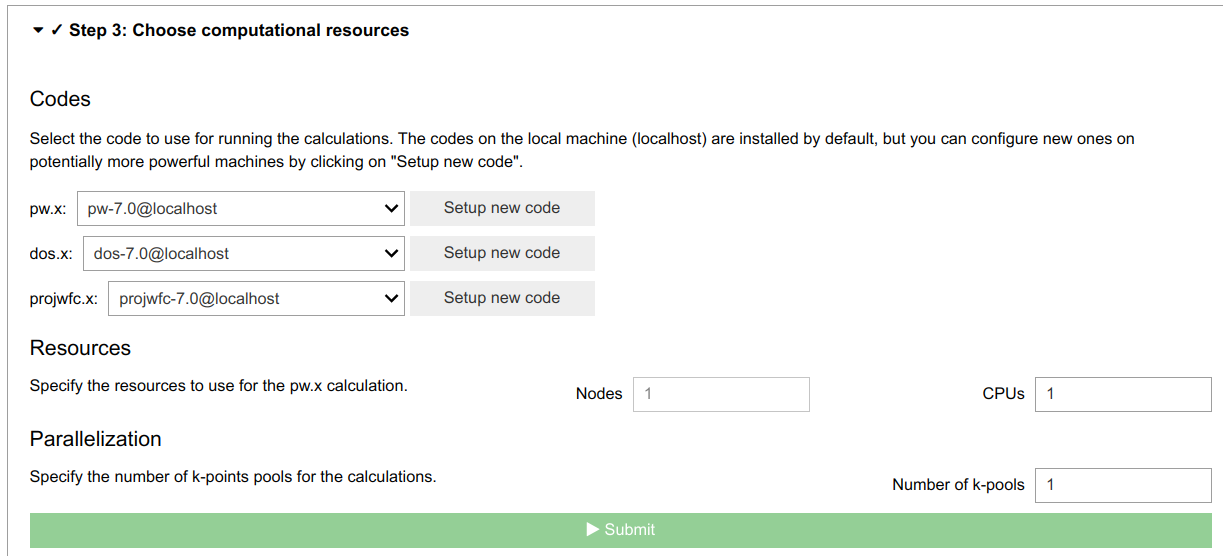
Click the Submit button to launch the calculation.
Step 4: Check the status and results#
Status#
The calculation may take about 3 minutes to complete. While waiting, you can view information regarding the calculation by clicking the QeAppWorkchain item in the status tree view and checking out the Workflow Summary.
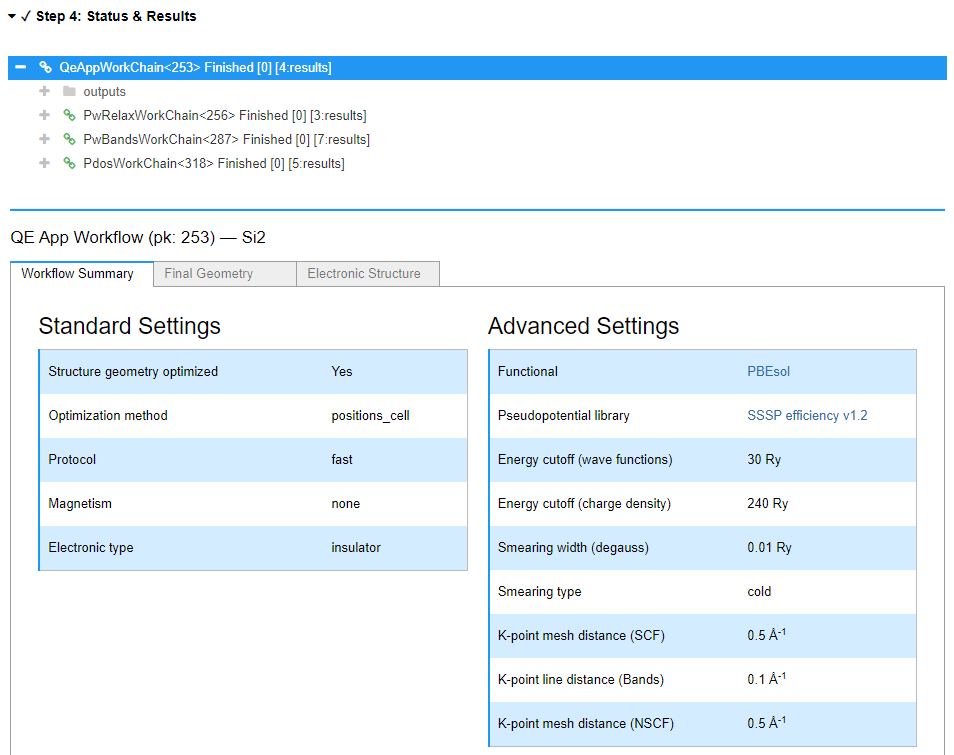
You can also check out the status of the submitted calculation above Step 1 in the Select computed workflow or start a new one dropdown menu.

Results#
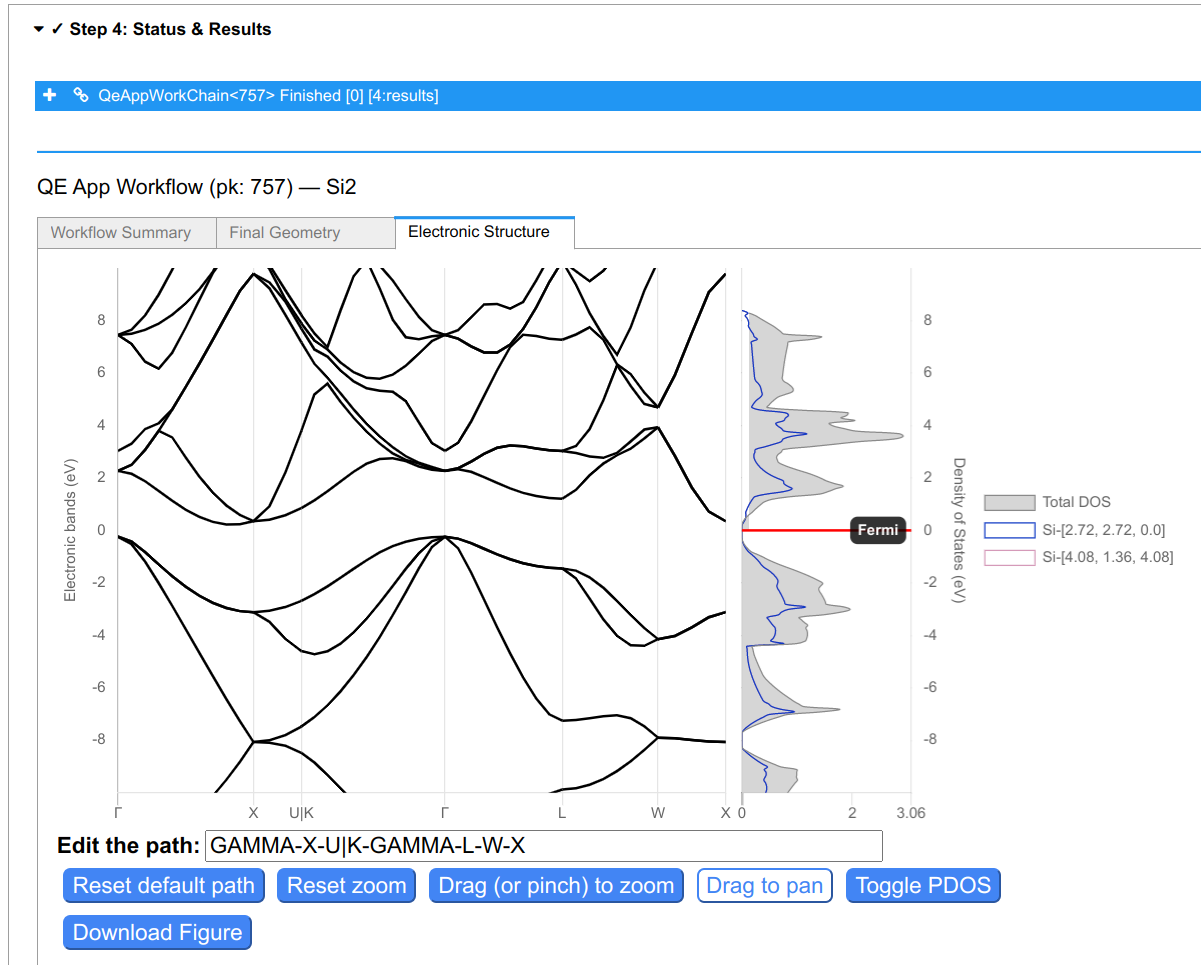
When the calculation is finished (you may need to refresh the window), you can switch over to the Final Geometry and Electronic Structure tabs to view the results.
Summary#
In this tutorial, you learned how to submit a band structure calculation using the Quantum ESPRESSO app by selecting a structure, the properties to compute, the level of accuracy, and the computational resources. You then monitored the status of your submitted calculation and viewed the results once the it finished.
In the next section, we will show you how to submit calculations to obtain more advanced properties. These calculations will require more computational resources, so we will need to run them on a remote machine. No worries, we will guide you through the necessary setup.